 Skip to content


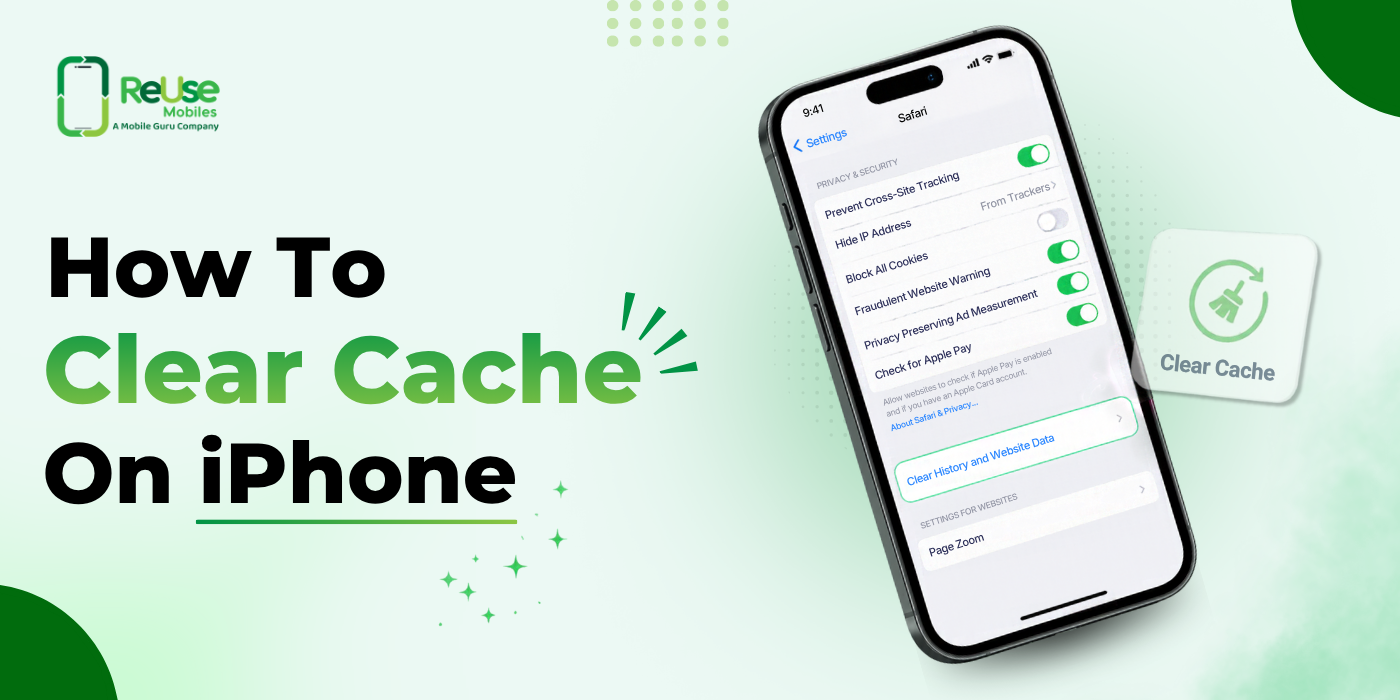
If your iPhone feels slow, Safari is not loading pages properly, or websites keep showing old information, clearing the cache can help.
Cache is temporary data your iPhone stores to make websites and apps load faster. Most of the time, this is useful. But old cache can sometimes cause loading issues, sign-in problems, or pages that do not update properly.
The good news is that you do not need to factory reset your iPhone. In most cases, you only need to clear Safari data, remove website data, or manage app storage.
Start Here First
To clear cache on iPhone, start with Safari because that is where most people notice cache problems.
Go to Settings > Apps > Safari > Clear History and Website Data.
If you want to clear website data without removing browsing history, go to Settings > Apps > Safari > Advanced > Website Data > Remove All Website Data.
On some older iOS versions, Safari may appear directly in Settings instead of under Apps.
What Does Cache Mean on iPhone?
Cache is saved temporary data. Your iPhone uses it to load websites, images, app content, and repeated pages faster.
For example, Safari may save parts of websites you visit often. Some apps also save temporary files so they can open faster next time.
Cache is not always bad. You do not need to clear it every day. But clearing it can help when something is not loading correctly.
When Should You Clear iPhone Cache?
Clearing cache may help if:
- Safari pages are loading slowly.
- A website keeps showing old information.
- A page is not opening properly.
- You are having sign-in issues on websites.
- Your iPhone feels slow while browsing.
- A website keeps crashing or freezing.
- You want to remove stored website data.
If your iPhone is slow all the time, cache may not be the only reason. Storage, battery health, old software, background apps, or a weak internet connection can also cause problems.
How to Clear Safari Cache on iPhone
Use this method if you want to clear Safari history, cookies, and cache together.
- Open Settings.
- Tap Apps.
- Tap Safari.
- Scroll down and tap Clear History and Website Data.
- Choose the timeframe you want to clear.
- Tap Clear History.
This can remove browsing history, cookies, and cached website data from Safari.
Before doing this, remember that some websites may sign you out. If you are logged into banking, email, shopping, or work websites, make sure you know your login details.
How to Clear Safari Cache Without Deleting History
If you want to clear website data but keep your Safari history, use the Website Data option instead.
- Open Settings.
- Tap Apps.
- Tap Safari.
- Tap Advanced.
- Tap Website Data.
- Tap Remove All Website Data.
- Confirm by tapping Remove Now.
This is useful when you want to remove stored website data without clearing your full browsing history.
How to Clear Cache for iPhone Apps
iPhone does not have one universal “clear all app cache” button. Some apps include their own cache-clearing option, while others do not.
Try these options:
Check the App Settings
Open the app and look for settings such as:
- Clear cache
- Clear browsing data
- Storage
- Data usage
- Downloads
- Offline files
Apps like browsers, streaming apps, maps, and social apps may store more temporary data than simple apps.
Offload the App
Offloading removes the app itself but keeps its documents and data.
- Open Settings.
- Tap General.
- Tap iPhone Storage.
- Choose the app.
- Tap Offload App.
- Reinstall the app when needed.
This can free storage used by the app, but it may not remove all saved app data.
Delete and Reinstall the App
If an app is using too much storage or still behaving badly, deleting and reinstalling it can remove the app and its related data.
Only do this if you are comfortable signing back in and you know important data is backed up or stored in the cloud.
Delete and Reinstall the App
If an app is using too much storage or still behaving badly, deleting and reinstalling it can remove the app and its related data.
Only do this if you are comfortable signing back in and you know important data is backed up or stored in the cloud.
Does Clearing Cache Delete Photos or Messages?
No. Clearing Safari cache does not delete your photos, messages, contacts, or apps.
However, it may remove website data, cookies, and browsing history. That means some websites may forget your preferences or ask you to sign in again.
Deleting an app is different. If you delete an app, its related data may also be removed from the iPhone. Check the app first if it stores important files, notes, messages, downloads, or work data.
Will Clearing Cache Make an iPhone Faster?
It can help in some cases, especially if Safari or a specific app is causing problems.
Clearing cache may improve:
Website loading issues
Old page content
Browser glitches
Sign-in problems
Some app storage issues
But clearing cache will not fix every slow iPhone. If the phone is still slow, check available storage, update iOS, restart the iPhone, remove unused apps, and check battery health.
What If Clear History Is Greyed Out?
If the Clear History option is greyed out, there may be no data to clear. It can also happen if Screen Time restrictions are enabled.
Check whether content restrictions are active under Screen Time, especially if the iPhone is managed for a child, school, or workplace.
Small Things People Often Miss
Avoid these common mistakes when clearing cache on iPhone:
- Clearing Safari data without knowing website passwords.
- Deleting apps without checking if important data is backed up.
- Expecting cache clearing to fix battery or hardware issues.
- Clearing cache daily when there is no problem.
- Confusing cache clearing with factory reset.
- Removing website data before saving important work in browser tabs.
Cache clearing should solve a specific problem. It should not be treated as a daily maintenance task.
If Your iPhone Still Feels Slow
If clearing cache does not help, try these next steps:
Restart your iPhone.
Check your internet connection.
Update iOS.
Update your apps.
Delete unused apps.
Remove large videos or downloads.
Check iPhone Storage.
Check battery health.
Close an app only if it is not responding.
If the iPhone is still slow after these steps, the issue may not be cache. It could be storage, battery condition, software, or hardware.
Clear Cache Only When It Helps
Clearing cache on iPhone is useful when Safari, websites, or apps are not working properly. For most people, the best starting point is Safari because that is where cache problems are easiest to notice.
Clear Safari history and website data if you want a broader cleanup. Use Website Data if you want to clear stored website data without removing browsing history.
If the problem is inside a specific app, check the app settings first. If that does not help, consider offloading or deleting and reinstalling the app.
Frequently asked questions
Go to Settings > Apps > Safari > Clear History and Website Data. On some older iOS versions, Safari may appear directly in Settings.
Go to Settings > Apps > Safari > Advanced > Website Data > Remove All Website Data.
No. Clearing Safari cache does not delete photos, messages, contacts, or apps.
It can. Clearing cookies and website data may sign you out of some websites.
No. iPhone does not have one universal button to clear every app cache. Check the app settings, offload the app, or delete and reinstall the app if needed.
No. Clearing cache removes temporary website or app data. A factory reset erases the iPhone and should only be used when you want to remove your data from the device.