 Skip to content


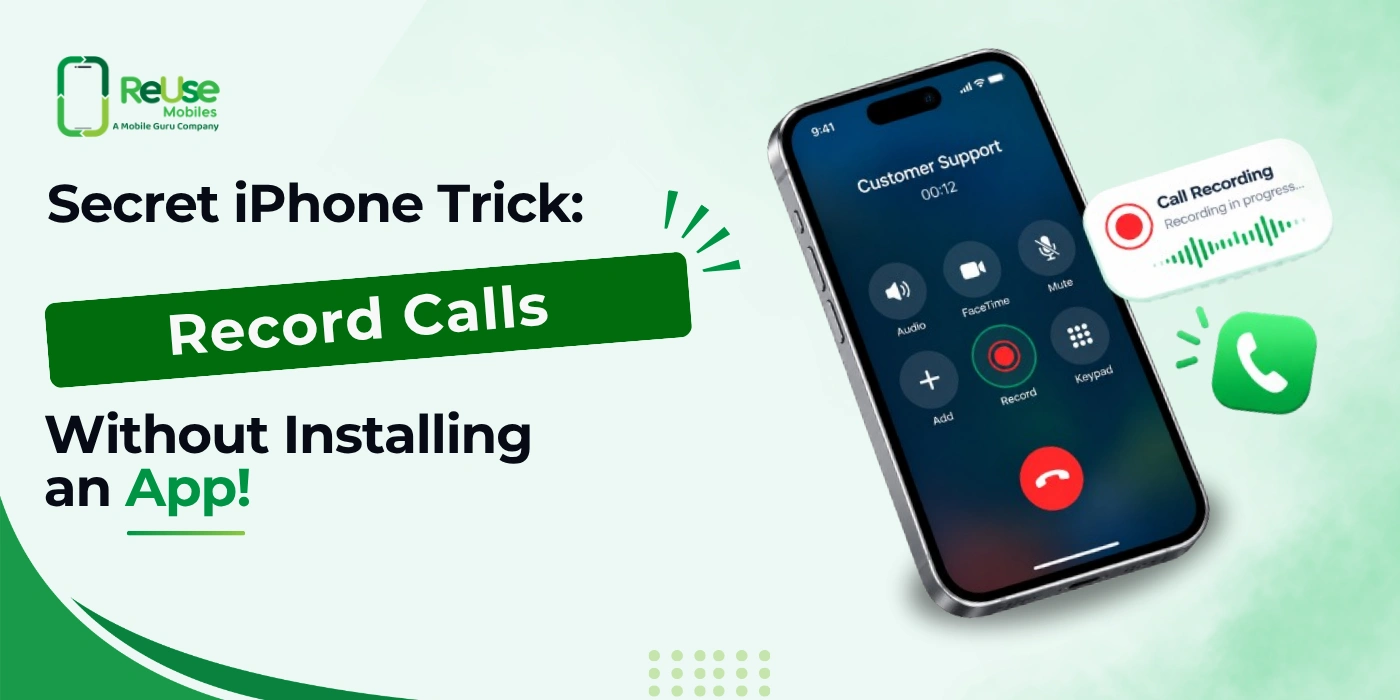
Need to record an important phone call so you can listen to it later? Your iPhone may already have everything you need.
With iOS 18.1 or later, supported iPhones can record phone calls directly through the Phone app. You don’t need to download a separate call recorder. The recording is saved in Notes, where you can listen to it again.
Here’s how to do it, including what to check if the recording option doesn’t appear.
How to Record a Phone Call on iPhone
Before starting, make sure the other person agrees to the recording.
- Open the Phone app.
- Make or answer a phone call.
- While you’re on the call, tap the More (…) button.
- Select Call Recording. On some earlier iOS layouts, the recording control appears directly on the call screen.
- An audio announcement will let both people know the call is being recorded.
- Continue your conversation.
- Tap Stop to finish recording, or end the call.
Your iPhone automatically saves the recording in the Call Recordings folder inside the Notes app.
Worth knowing: You can’t record a call using Apple’s built-in feature without the other person hearing the recording announcement.
Where Are Recorded Phone Calls Saved on iPhone?
If you’ve just finished recording a call and can’t find it, check Notes rather than Voice Memos.
- Open the Notes app.
- Go to Folders.
- Open Call Recordings.
- Select the recorded call.
- Tap Play to listen.
You can also tap View Saved Call after ending a recording to open it directly.
If you need to keep a separate copy, open the recording in Notes, tap the More (…) menu, and choose Save Audio Files or Share Audio, depending on what you want to do.
Can’t Find the Call Recording Option?
If you don’t see Call Recording during a phone call, check these things before installing another app.
1. Check Your iOS Version
Built-in call recording was introduced with iOS 18.1.
Go to Settings > General > About to check your version.
If your iPhone supports a newer version, go to Settings > General > Software Update and install an available update.
If your iPhone cannot run a supported iOS version, the built-in recording option won’t be available.
2. Check Whether Call Recording Is Enabled
Go to:
Settings > Apps > Phone > Audio Call Recording
Make sure the feature is turned on.
If the setting isn’t available, check your iOS version and regional support.
3. Check Your Country or Region
Apple’s call recording feature isn’t available in every country or region.
If your iPhone is updated but the option is still missing, check Apple’s feature availability page before trying another method.
4. Check Which App You’re Using
Apple’s built-in call recording works with supported calls in the Phone app and one-to-one FaceTime audio calls.
It does not automatically mean you can record calls inside WhatsApp, Messenger, or every other calling app. Those apps have their own features and restrictions.
How to Record a Phone Call Without the Built-In Option
If your iPhone doesn’t support Apple’s call recording feature, you still have another practical option.
With everyone’s permission, you can use a second device to record the conversation.
- Tell the other person you want to record the call and get their agreement.
- Put the iPhone call on speakerphone.
- Open a voice recorder on another phone or a separate recording device.
- Start recording.
- Keep the devices close enough to capture both voices clearly.
- Stop the recording when the call ends.
- Play it back to check the sound.
This method may not produce the same audio quality as built-in recording, especially in a noisy room.
Some third-party call recording apps also exist, but their features, fees, privacy practices, and compatibility vary. Check how they work before giving an app access to sensitive conversations.
Can You Record a Conversation on iPhone Without Making a Call?
Yes. If you’re recording an in-person conversation, meeting, or voice note, use the built-in Voice Memos app instead.
- Open Voice Memos.
- Tap the red Record button.
- Place the iPhone somewhere it can clearly pick up the conversation.
- Tap Stop when finished.
- Open the saved recording to listen again.
Voice Memos is useful for recording sound around you. However, it isn’t a reliable replacement for recording both sides of a phone call on the same iPhone.
Remember to get permission when recording other people.
Can You Turn a Recorded Call Into Text?
Yes, if call transcription is supported for your iPhone, language, and region.
Open the recorded call in Notes and tap the recording to view its transcript, if available.
This can be useful when you need to remember an appointment time, address, instructions, or something important discussed during a call.
Some compatible iPhones also support AI-generated call summaries through Apple Intelligence.
Always double-check important information against the actual audio. Transcriptions can make mistakes, particularly with names, numbers, and background noise.
Is It Legal to Record Phone Calls in Australia?
Recording laws differ across Australian states and territories. Whether a call can legally be recorded, and whether that recording can later be shared, depends on the circumstances.
The safest approach is to tell the other person you’re recording and get their agreement before you start.
For work-related, confidential, or sensitive conversations, check the laws and any relevant workplace policies before recording.
Before You Record Your Next Call
If your iPhone supports Call Recording, use the built-in Phone app option. It’s the simplest way to record a conversation and find the audio afterwards.
For an important call, it’s worth testing the feature with someone you know first. Ask permission, record a short conversation, and check that you can find and play the recording in Notes.
That way, you’ll know everything works before you need it.
Questions People Often Have
Yes. If your iPhone supports Apple’s built-in Call Recording feature, you can record calls without buying a separate app.
Yes. On supported iPhones, you can start recording during an active incoming or outgoing call.
Yes. Apple’s built-in feature plays a recording announcement that both participants can hear.
Don’t rely on Screen Recording for this. It may not capture the other person’s voice. Use the Phone app’s Call Recording feature instead.
Open Notes and look for the Call Recordings folder. If there’s no recording, check whether recording actually started during the call.
Yes. On supported iPhones, the Phone app includes Call Recording, so no additional recording app is required.