 Skip to content

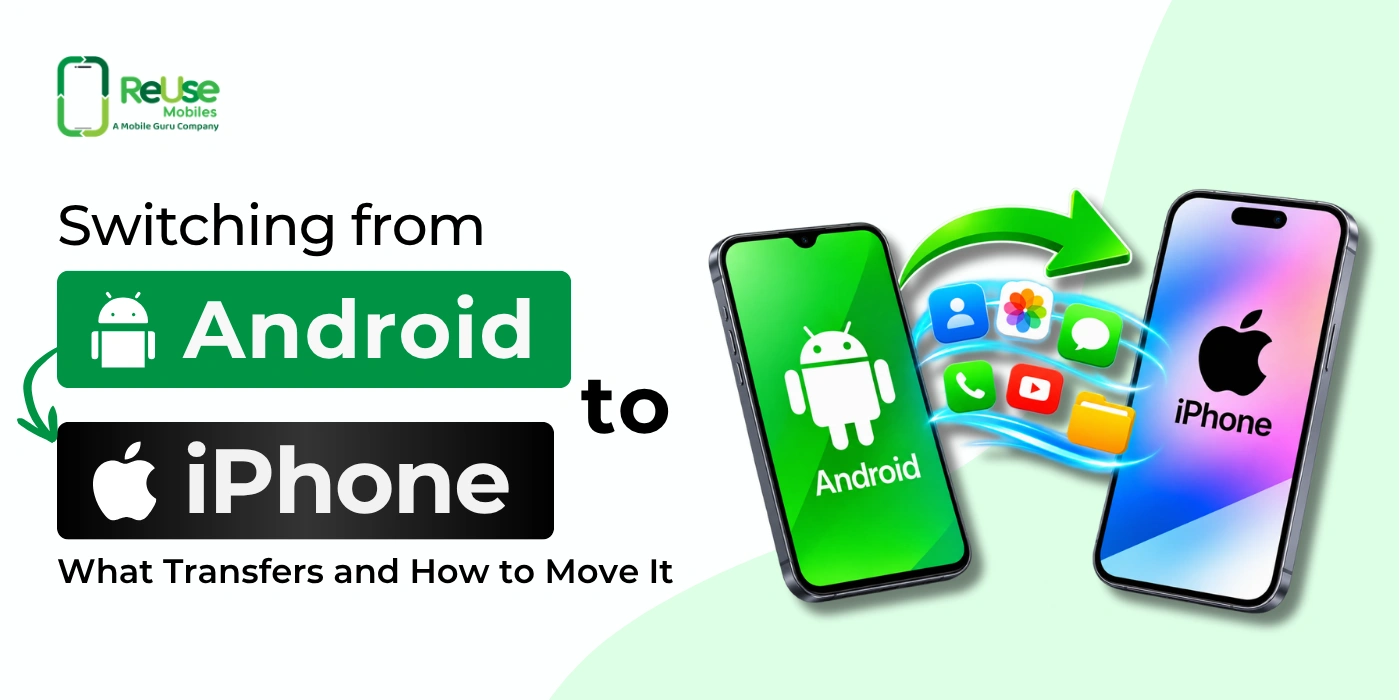
Switching from an Android phone to an iPhone? You can bring over your contacts, photos, text messages, WhatsApp chats, and other important data without starting from scratch.
The easiest way is Apple’s Move to iOS app, which transfers data while you’re setting up your iPhone. If you’ve already finished setting up your iPhone, you can still move many things manually, although transferring your old WhatsApp conversations requires extra care.
Here’s how to make the switch without losing anything important.
Before You Switch from Android to iPhone
Before transferring anything, check these five things:
- Back up your Android phone. Keep a copy of important photos, files, and conversations in case something goes wrong.
- Charge both phones. Ideally, leave them connected to power throughout the transfer.
- Check available storage. Your iPhone needs enough space for the data you’re bringing across.
- Keep your passwords handy. You’ll need access to your Google account, Apple Account, and possibly banking or authentication apps.
- Don’t erase your Android yet. Wait until you’ve checked that your important data is available on the iPhone.
The transfer process is similar whether you’re moving from a Samsung Galaxy, Google Pixel, OPPO, or another Android phone.
How to Transfer Data from Android to iPhone Using Move to iOS
If your iPhone is new or has been factory reset, follow these steps.
Step 1: Install Move to iOS on Android
On your Android phone, download Apple’s Move to iOS app from Google Play.
Turn on Wi-Fi and place your Android phone next to your iPhone.
If both phones support a suitable USB-C connection, you can also connect them directly with a cable for a potentially faster transfer.
Step 2: Start Setting Up Your iPhone
Turn on your iPhone and follow the setup instructions.
When you reach the Transfer Your Apps & Data screen:
- Select From Android.
- Choose Transfer with App.
- Tap Continue when prompted.
Your iPhone will display a six-digit or ten-digit code.
Step 3: Connect Your Android Phone
Open Move to iOS on your Android device.
- Tap Continue.
- Accept the terms and allow the permissions requested.
- Enter the code displayed on your iPhone.
- Join the temporary Wi-Fi network when prompted.
Your Android may briefly say the network has no internet connection. That’s normal during this part of the transfer.
Step 4: Choose What You Want to Transfer
Your Android will show the types of data available to move.
Select what you need, such as contacts, text messages, photos, videos, calendars, files, or WhatsApp.
Then tap Continue.
Keep both devices nearby and avoid opening other apps or answering calls while the transfer is running.
Don’t stop when the Android says it’s finished. Wait until the progress bar on your iPhone has completed.
Step 5: Finish Setting Up Your iPhone
Once the transfer is complete:
- Tap Done on your Android phone.
- Continue setting up your iPhone.
- Sign in with your Apple Account.
- Download or finish installing any apps you need.
- Check that your important content has arrived.
Open Photos, Contacts, Messages, and WhatsApp before putting your old phone away.
Note: On some compatible Android 17 devices, Apple also supports transferring directly without the Move to iOS app. If your iPhone displays Transfer without App, follow the instructions for that option instead.
What Data Transfers from Android to iPhone?
Not everything moves in exactly the same way.
| Data | Will It Transfer? |
|---|---|
| Contacts | Yes, using Move to iOS or Google sync |
| SMS and message history | Yes, through the initial transfer |
| Photos and videos | Yes |
| WhatsApp chats and media | Yes, with the supported migration process |
| Calendars | Yes |
| Call history | Yes, through supported migration |
| Browser bookmarks | Yes, including supported Chrome bookmarks |
| Files and folders | Yes, with some exceptions |
| Free apps | Some compatible apps can be matched for download |
| Paid apps | Usually need to be purchased again on iPhone |
| Music, books, and PDFs | May need manual transfer |
| Banking apps and authenticator data | Banking apps and authenticator data |
One thing people overlook is app data.
Getting the same app on your new iPhone doesn’t guarantee that its saved information, settings, or login details will transfer.
For example, you may need to sign back into your banking app or reconnect an authenticator.
How to Transfer WhatsApp from Android to iPhone
WhatsApp is worth dealing with carefully, especially if you have years of messages or photos you want to keep.
The supported method uses Move to iOS during initial iPhone setup.
- Open Move to iOS on Android and connect to your iPhone.
- On the transfer screen, select WhatsApp.
- Tap Start on Android when prompted.
- Wait while WhatsApp prepares your data.
- Return to Move to iOS and complete the transfer.
- Install WhatsApp on your iPhone.
- Sign in using the same phone number.
- Follow the prompt to import your transferred chats.
Your iPhone must be new or factory reset for this supported migration process.
Already using WhatsApp on your iPhone? You can’t simply merge your existing iPhone chats with your old Android history. Back up anything important before considering a reset.
Also, restoring a Google Drive WhatsApp backup directly through WhatsApp on an iPhone isn’t the same as using the supported Android-to-iPhone migration process.
How to Transfer Data from Android to iPhone After Setup
Already finished setting up your iPhone?
You don’t necessarily need to reset it.
You can manually transfer many types of content using the services you already us
Transfer Contacts from Android to iPhone
If your contacts are saved to your Google account:
- On your iPhone, open Settings.
- Go to Apps > Contacts > Contacts Accounts.
- Tap Add Account.
- Select Google and sign in.
- Turn on Contacts.
Your Google contacts should become available in the iPhone Contacts app once syncing finishes.
If some contacts are missing, check whether they were stored locally on the Android phone rather than in your Google account.
Transfer Photos and Videos
If you already use Google Photos on Android:
- Make sure your Android photos have finished backing up.
- Install Google Photos on your iPhone.
- Sign in with the same Google account.
- Open the app to view your backed-up pictures and videos.
Your photos will be accessible in Google Photos. They won’t necessarily all appear in Apple’s Photos library automatically.
If you prefer to keep your photos in Apple’s Photos app, you can download selected photos or use a computer to transfer them.
Transfer Files from Android to iPhone
For documents, PDFs, and other files, Google Drive is one of the simplest options.
- Upload the files from your Android phone to Google Drive.
- Install Google Drive on your iPhone.
- Sign in with the same account.
- Open or download the files you need.
Dropbox, OneDrive, and other supported cloud storage services also work.
You don’t need to email dozens of files to yourself or reset the iPhone just to access a few documents.
What About Text Messages and WhatsApp After Setup?
This is where things become less straightforward.
The supported Move to iOS process is designed for a new or erased iPhone. If you want to use that process after setup, you must first back up anything important on your iPhone and then erase it.
You can find the reset option under Settings > General > Transfer or Reset iPhone > Erase All Content and Settings.
Don’t reset your iPhone unless you’re prepared for its contents to be erased.
If your current iPhone already contains important messages or app data, consider whether a full migration is worth the risk before starting over.
Move to iOS Not Working? Try These Fixes
If the transfer gets stuck, disconnects, or doesn’t finish, check the following.
The transfer stops or freezes
Keep Move to iOS open on the Android phone. Avoid switching apps, taking calls, or using either device while data is being copied.
Your Android keeps disconnecting from Wi-Fi
Temporarily turn off mobile data and settings that automatically switch between Wi-Fi and mobile networks. Then restart both phones and try again.
The iPhone runs out of storage
Check how much data is on your Android phone, including files on a microSD card. Your iPhone must have enough capacity for everything you’ve selected.
Some apps haven’t appeared
Download them from the App Store. Not every Android app has an iPhone version, and some app information must be restored separately.
WhatsApp chats are missing
Check that you selected WhatsApp during migration and signed in on your iPhone with the same phone number. If the migration wasn’t completed, simply reinstalling WhatsApp may not bring your Android chat history across.
Getting Used to an iPhone After Android
The first few days can feel a little different, especially if you’ve used Samsung or another Android phone for years.
Here are the main changes worth knowing.
Going back: iPhones don’t have a permanent Android-style Back button. Many apps let you swipe from the left edge or use a back arrow.
Finding your apps: Swipe left through your Home Screen pages to reach the App Library, where installed apps are organised.
Downloading apps: Use the App Store instead of Google Play.
Using Google apps: Gmail, Google Maps, Google Photos, Chrome, and Google Drive are available on iPhone. You don’t have to stop using your Google account.
Backing up your new phone: Set up iCloud Backup under Settings so your new iPhone’s important information can be backed up.
You don’t need to learn every iPhone feature on day one. Start with the apps and settings you use most often.
If you try an iPhone but decide Android suits you better, you can sell your iPhone for cash through ReUse Mobiles instead of leaving it unused.
What Should You Do With Your Old Android Phone?
Don’t sell or factory reset your old phone immediately after transferring your data.
First, check that your contacts, photos, important files, WhatsApp chats, and authentication apps are working on your iPhone.
Also confirm that your phone number and mobile service are active on the new device.
Once everything is working, you can sign out of your accounts and factory reset the old Android phone before passing it on.
If you’re switching from a Galaxy device and no longer need it, you can sell your Samsung phone for cash through ReUse Mobiles. Check its current value after you’ve finished transferring and securely removing your personal data.
Before You Put Your Android Away
Switching from Android to iPhone is usually straightforward when you transfer your data during the initial setup.
Move to iOS is the best place to start for contacts, messages, photos, and WhatsApp. If you’ve already set up your iPhone, Google Photos, Google Contacts, and cloud storage can help you move much of your information without resetting anything.
Most importantly, keep your old Android phone until you’ve checked everything you need on your iPhone. A few extra minutes checking your data can prevent a much bigger headache later.
Common Questions About Switching from Android to iPhone
You can transfer most essential information, including contacts, photos, messages, calendars, and supported WhatsApp chats. However, some app data, purchased apps, music, books, and authentication settings may need separate attention.
Yes. Use Move to iOS during setup, or access backed-up photos through Google Photos. Keep your Android phone until you’ve checked that your photos are safely available.
Yes. Move to iOS is Apple’s free app for transferring supported Android data to an iPhone.
Yes. Samsung Galaxy phones can use Apple’s Move to iOS app. Samsung Smart Switch is primarily intended for transferring data to Samsung devices, so use Move to iOS when your destination is an iPhone.
If both phones support the same physical SIM size and your mobile plan is compatible, you may be able to move the SIM. For an eSIM, contact your mobile provider if the phone doesn’t offer a supported transfer option.